Hot Deals
 Special Products

How to Connect Hik-Connect App to Hikvision or HiLook DVR
Hik-Connect allows you to view your CCTV cameras remotely from your mobile phone. Once your Hikvision or HiLook DVR is connected to the Hik-Connect app, you can watch live view, check playback and manage your CCTV system from your phone.
This guide explains how to connect the Hik-Connect app to a Hikvision or HiLook DVR using the QR code method.
Watch the Video Guide
In this video, we show how to connect the Hik-Connect app to a Hikvision or HiLook DVR step by step. The video covers downloading the app, enabling Platform Access on the DVR, scanning the QR code and using the verification code if the camera feed appears encrypted.
Use the written guide below as a quick reference while following the video.
Before You Start
Before connecting your DVR to Hik-Connect, make sure you have completed these steps:
Download the Hik-Connect app
Create or log in to your Hik-Connect account
Make sure you can see the Add Device option in the app
Connect your DVR to your router using an Ethernet cable
Make sure the DVR is powered on
Make sure you have access to the DVR menu
The DVR must be connected to the internet before the app can connect properly.
Step 1: Open the DVR Menu
Once you are logged into your Hikvision or HiLook DVR, right-click on the screen and select Menu.
You may need to enter the DVR username and password before accessing the settings.
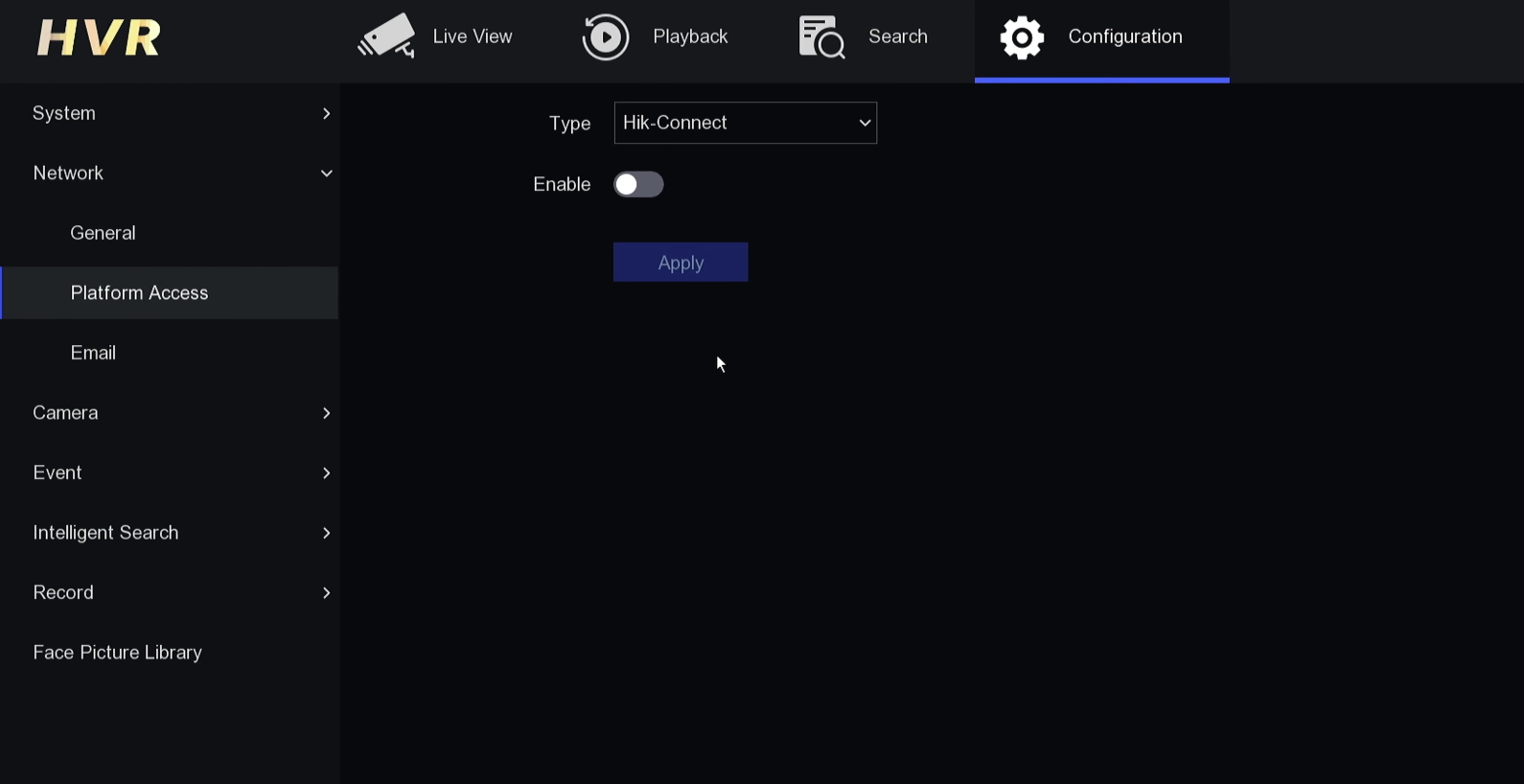
Step 2: Go to Platform Access
From the DVR menu, go to:
Configuration → Network → Platform Access
This is the section where Hik-Connect remote access is enabled.
Step 3: Enable Platform Access
Make sure Enable is switched on.
You may need to agree to the terms and conditions before the service can be activated.
After enabling it, click Apply.
The status should change to Online. If it says offline, the DVR may not be connected to the internet correctly.
Step 4: Open the Hik-Connect App
Open the Hik-Connect app on your phone.
From the home screen, tap Add Device or press the plus (+) icon in the top right corner.
Then select Scan QR Code.
Step 5: Scan the DVR QR Code
On your DVR monitor, you should see a QR code in the Platform Access section.
Use your phone to scan the QR code from the DVR screen.
Once the scan is successful, the app should start adding the device.
Step 6: Complete the Device Setup
After the app shows that the device has been added, you can rename the DVR.
For example, you can name it:
Home CCTV
Shop CCTV
Office CCTV
Warehouse CCTV
Front Camera System
If the app asks about audio collection, you can skip it if you do not need audio features.
Once the setup is complete, you should be able to view your cameras from the Hik-Connect app.
Step 7: Enter the Verification Code If Needed
Sometimes the camera feed may show as encrypted.
If this happens, you need to enter the verification code from the DVR.
You can usually find this code in:
Configuration → Network → Platform Access
The verification code is used to unlock the live view on your app.
Pro Tip: Change the Verification Code
If you plan to share the CCTV system with family, staff or colleagues, it can be useful to change the verification code to something you can remember.
Do not use something too obvious like 123456, password, or your company name only. Use a code that is simple for you to remember but not easy for other people to guess.
Common Problems and Fixes
Platform Access says offline
Check that the DVR is connected to your router with an Ethernet cable. Also check the network settings, internet connection and DNS settings.
The QR code does not scan
Make sure the QR code is clearly visible on the DVR monitor. Increase the screen brightness if needed and hold the phone steady while scanning.
The cameras show as encrypted
Enter the verification code from the Platform Access section of the DVR.
The app says adding failed
Check that the DVR is online, the internet is working, and the DVR has not already been added to another Hik-Connect account.
You cannot see cameras away from home
Make sure the DVR Platform Access status is online and that your mobile phone has internet access.
Final Tips
Connecting Hik-Connect to a Hikvision or HiLook DVR is simple once the DVR is online and Platform Access is enabled.
The key steps are:
Connect the DVR to the router
Enable Platform Access
Make sure the status says Online
Scan the QR code with Hik-Connect
Enter the verification code if the feed is encrypted
If you need help with Hik-Connect setup, HiLook DVR setup, Hikvision DVR remote viewing or CCTV installation, Third Eye Surveillance can help with home and business CCTV systems in Manchester and surrounding areas.
 3 mins read