Hot Deals
 Special Products

Watch the Video Guide
Watch this video showing how to set motion detection on a Hikvision or HiLook DVR step by step.
Step-by-Step Configuration
Step 1: Open the DVR Settings
Once you are logged into your Hikvision or HiLook DVR and you are on the full-screen camera view, right-click on the screen to open the menu.
Go to:
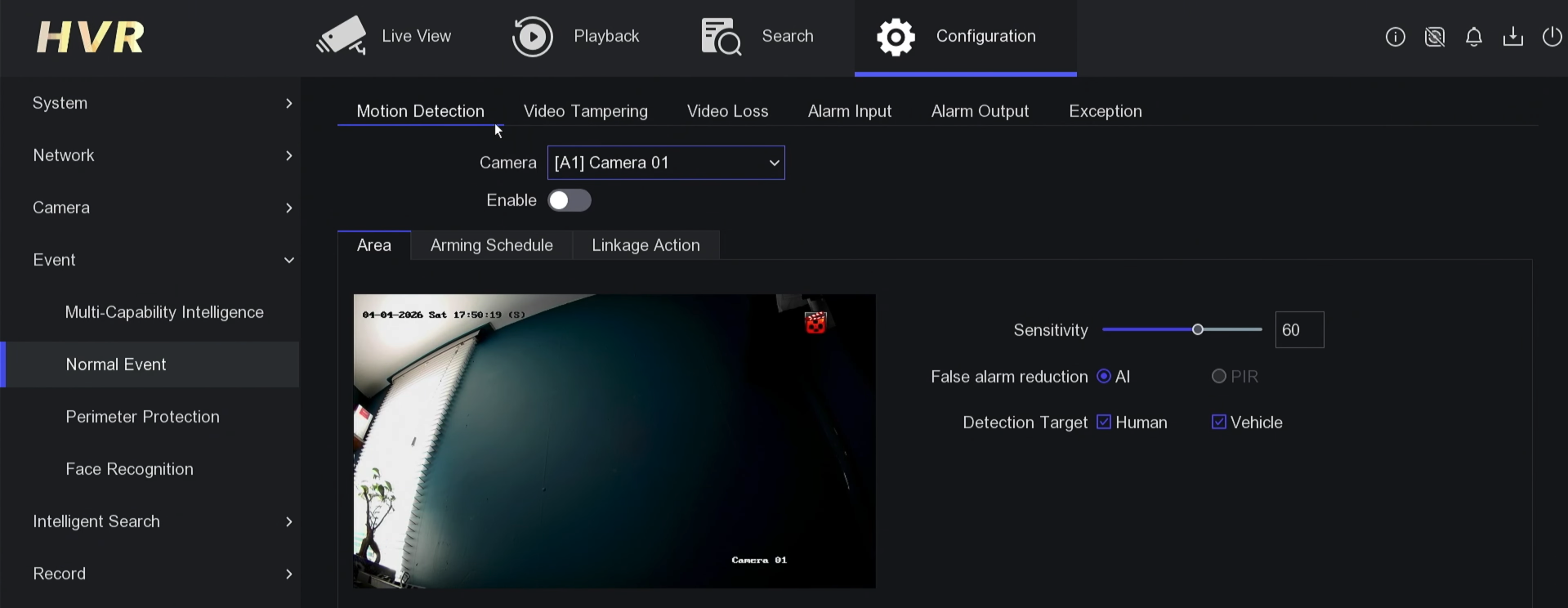
Menu → Configuration → Event → Normal Event
This is where you can set motion detection and smart event settings for each camera channel.
Step 2: Select the Camera Channel
Choose the camera channel you want to configure.
For example, if you want to set motion detection for your front door camera, select that camera channel from the list.
Make sure Enable is switched on.
Step 3: Draw the Detection Area
If there is already a detection line or area on the screen, clear it first.
Then select Draw Area and use the pen tool to mark the area where you want the camera to detect movement.
When drawing the detection area, try not to cross the lines. Use the points carefully to create a clean detection zone.
Once you have finished drawing the area, right-click to confirm, then click Apply.
Step 4: Adjust Sensitivity and Target Detection
The default sensitivity is usually around 60, which is a good starting point for most setups.
You can increase or decrease the sensitivity depending on the camera location.
If your DVR supports human and vehicle detection, you can choose what target you want the system to detect. For example, if you only want alerts for people, you can untick Vehicle and keep Human selected.
This helps reduce unnecessary alerts from cars, traffic or other movement.
Step 5: Set the Arming Schedule
By default, the detection schedule is usually active 24/7.
If you want to change when alerts are active, click Arming Schedule.
For example, you can clear certain times where you do not want to receive alerts, such as Saturday and Sunday between 8:00 AM and 8:00 PM.
This is useful if you only want notifications during certain hours.
Step 6: Set the Linkage Action
Go to the Linkage Action tab.
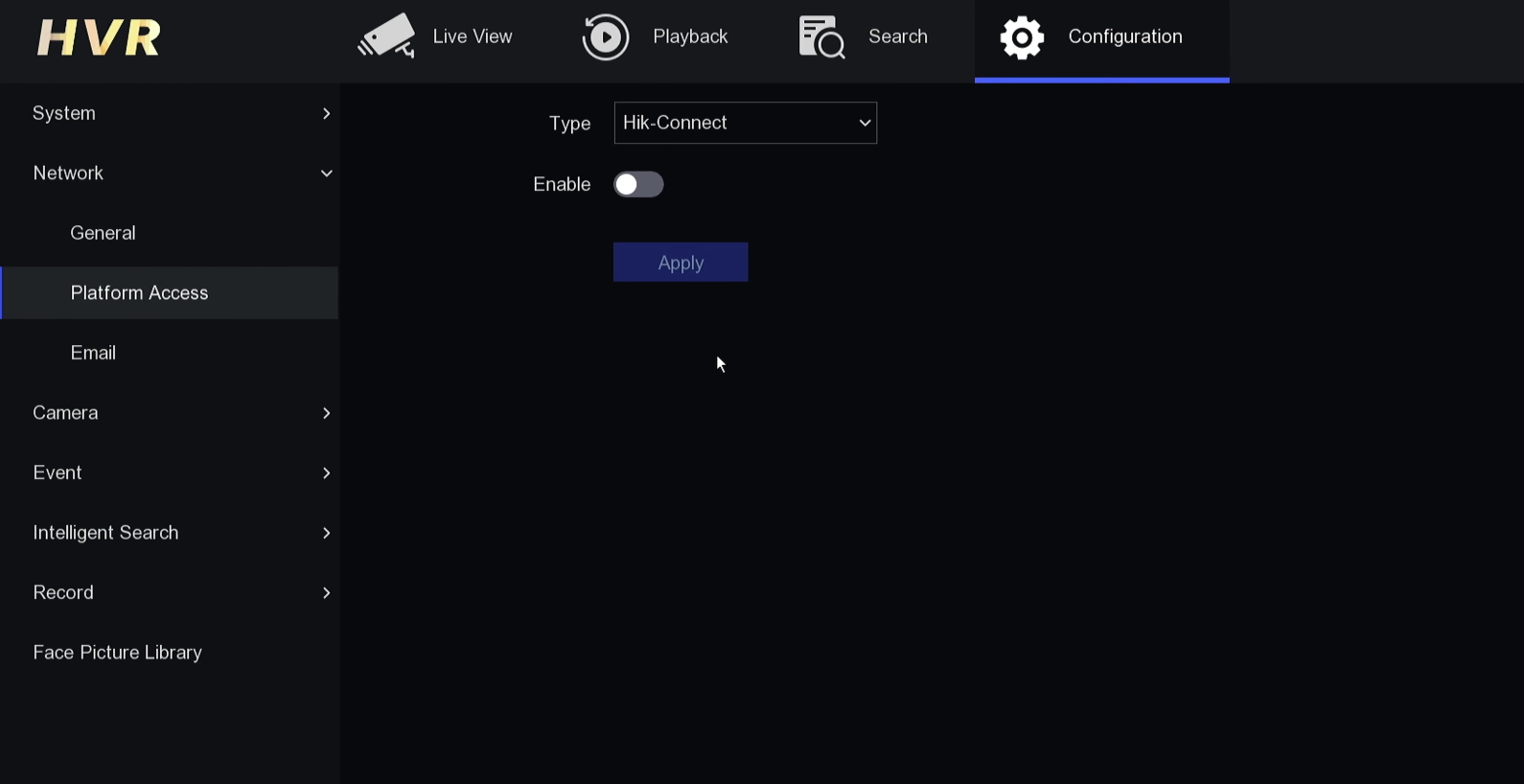
Select Notify Surveillance Center if you want to receive alerts on your Hik-Connect or HiLookVision app.
After selecting the correct linkage action, click Apply to save the settings.
Step 7: Check Your Mobile App
After the DVR settings are complete, make sure your Hikvision or HiLook app is properly connected to the DVR.
If the app is not synced correctly, you may not receive remote notifications even if motion detection is set up properly.
Check that:
The DVR is online
Hik-Connect or HiLookVision is connected
Notifications are enabled in the app
Your phone allows notifications from the app
The correct device is selected in the app
Once everything is connected, test the setup by walking through the detection area and checking whether you receive an alert.
 4 mins read